Time To Vote

Yes we are rapidly approaching the first Tuesday of the first full week of November - Election Day. One of the keys of a representative democracy is an informed electorate. Libraries have been part of that process since the founding of the republic. With that in mind I wanted to show you some of the resources and websites available to the person who wishes to go to polls on November 6 well informed.
First we have the Maine Citizen's Guide to the Referendum Election. This forty page booklet put out by the Office of the Secretary of State contains 1) Each of the five referendum questions 2) the legislation each question represents 3) a summary of the intent and content of the legislation 4) an explanation of the significance of a "yes" or "no" vote 5) an analysis of the debt service on each bond issue 6) an estimate of the fiscal impact of each referendum question on state revenues, appropriations, and allocations 7) public comments filed in support or in opposition to each ballot measure.
Copies of this booklet are available at the reference desk and are available online at http://www.maine.gov/sos/cec/elec/upcoming.html or as a pdf at http://www.maine.gov/sos/cec/elec/2007/CitizensGuide11-07.pdf
The state of Maine's Elections Division also has a lot of material for voters this election season. Their website is http://www.maine.gov/sos/cec/elec/
Once there, if you look under Upcoming Elections you will find copies of the Maine Citizen's Guide to the Referendum Election, Lists of the Ballot Questions, Absentee Ballot Applications both to mail and to file online, a complete list of candidates, and instructions for write in candidates. Under Voter Information are instructions for registering to vote and locating polling places. And finally when the polls close check out Election Results to see how it went.
As always if you need help finding information on a specific candidate or issue, no matter what, drop by or call the Reference Desk at the Bangor Public Library we will do our best to find the information you need. See you at the polls.
Jim Riordan jriordan@bpl.lib.me.us


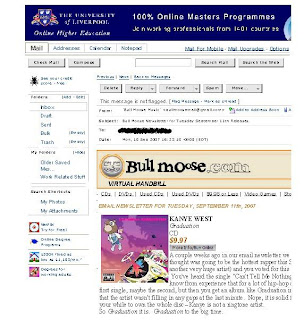 Though the print is small in this example, you can see that on the left hand side are all the graphics from your Yahoo! screen & on the right, the text of the message has been cut off. The reason for this is that, while I had wanted to print the email message, what I have actually done is printed the screen image. This is most likely because I used the drop down File - Print option or printer icon
 A comparison of these type examples will show that about half of the message was printed using the File -- Print or icon print image on the windows page.
  What this printout is providing is the screen image for the record I found, not the content of the article I'm hoping to print. Again, drop down File - Print option or printer icon

 This print has eliminated the peripherial & irrelevant images from the previous print, focusing instead on the written content I wanted printed.
 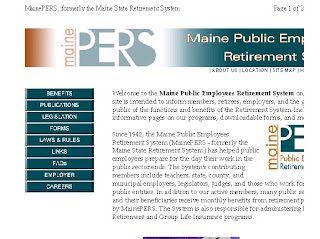 As you can see, the image & text has been sliced on the right hand side, omitting the ends of sentences, essentially making worthless the entire print job.
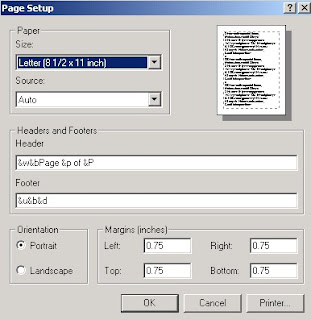 And here is the Page Setup menu in Landscape mode:
 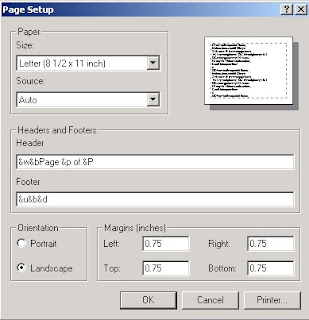 Landscape mode turns the page on its side. This often nullifies printouts that have chopped off the end of horizontal lines.
 Recapping & Summing Up
 2) The database providing access to Consumer Reports is Academic Search Premier. It is the first database on the alphabetical list of databases.
 3) To limit your search to Consumer Reports articles, you can either electronically add Consumer Reports by
 c) Clicking the box next to Consumer Reports & clicking on Add.
 d) Now, that Consumer Reports is in the "Find" box, click on Search.
 e) Or, you can manually type in (JN "Consumer Reports") in one of the three search boxes.
 4) Once you have limited your search to Consumer Reports, now you can add a search term, such as refrigerator into your search. Click Search or just hit "enter."
 5) On your results page, you may see either an Article Linker tag, PDF Full Text tag, or an HTML Text tag in the results of your search. The Article Linker results are those that are currently embargoed & are not available yet in full text on-line (but Bangor Public Library does own in print). The PDF Full Text results will provide easy links to magazine quality reproductions of Consumer Reports articles.
 6) If you need further assistance with this search or for other tips on how to use this or other Marvel! databases, contact a reference librarian (
 2)The database to access is Literature Resource Center. You may get to this database by
 B. Selecting Literature Resource Center from the Literature list:
  C. Scrolling down to Literature Resource Center on the A-Z listing of databases:
 3) Do an Advanced search.
 4) Put an author's name in the first search box, using Author as the search term. Put the title of the story or novel in the second search box, using Title as the search term. Click the green Search button.
  5) For journal articles and reviews, click the Literary Criticism, Articles and Work Overviews tab.
  6) To view the journal articles and reviews, click Literary Criticism.
  7) From this results list, you can easily read or print any articles that will be helpful for your research.


