How To Spot an Email Scam
I saw this in the newest edition of American Libraries Direct on-line & felt it could be of use to many of you.
The following link provides examples of visual clues on potential scams directed to your email: http://www.pcworld.com/article/id,138310-page,1-c,cybercrime/article.html.
I'm sure many of you can already identify many scams before ever opening a suspect email message. Maybe you have even been sent some of these exact same examples & deleted them.
Many of these carry a "too good to be true" vibe. However, some of these eleven examples, especially #10, the IRS refund example & the #6 Citizens Bank example, can appear to be very authentic.
My best advice would be never to trust any email message that lacks reliable contact information such as a valid address or phone number. In other words, if it does not look legitimate, then it's probably not legitimate.
Secondly, I would always be suspicious of somebody trying to contact you when you have no idea who or what they are. Almost all on-the-level email will be from a company or person you've already done business with. An email stating "Please click now ... you may have already won" (or thereabouts) would probably be more accurately described as "We are looking for another sucker ... could that sucker be you."
What these unsolicited emailers are doing is called "phishing." Phishing is, according to this website -- http://www.usnetizen.com/articles/phishing.html, a technique used by unsavory individuals and companies to try and fool you into giving out important personal and financial information. Armed with publicly available information plus what you supply, they can forge documents, set up accounts, and steal your identity. The ultimate purpose is to separate you from your money.
The site listed above, http://www.usnetizen.com/articles/phishing.html, provides excellent tips for avoiding being scammed. Here are the core guidelines this site suggests:
General guidelines for protecting yourself against phishing scams
Do not give out personal or financial information through an email request.
Always log on to your sensitive accounts by opening a new browser and typing the actual URL directly into the address bar. For example, if you receive a suspected phishing email from e-trade, open a new browser and type www.etrade.com in the address bar.
Do not click on any link in a suspected phishing email.
Only use a secure website to submit sensitive data. A secure sites’ address will begin with “https://” instead of “http://” and will show a lock or key icon at the bottom of the browser.
Another excellent source for identifying email & phishing scams is the Federal Trade Commission. Here is a link to its website: http://www.ftc.gov/.
Yet another authoritative source of common email scams is available on-line, courtesy of the State of Maine Bureau of Financial Institutions, at http://www.maine.gov/pfr/financialinstitutions/consumer/library.htm#Fraud. Click the link for Fraud on this page for specifics.
Conclusion
Living in Information Age makes many of our day-to-day communications easier & more convenient. However, in our haste to get things done, we may sometimes take the ease of doing business for granted. Many individuals are preying on our habit of quick-click solutions. The simplest advice we can take to heart in our on-line activities is this: Beware!
If you have any questions, or more importantly, email scams you'd like others to become aware of, please feel welcome in posting your experience on this blog or emailing me with your thoughts.
Patrick Layne: playne@bpl.lib.me.us


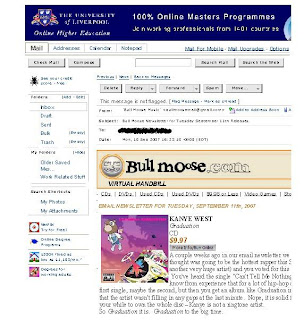 Though the print is small in this example, you can see that on the left hand side are all the graphics from your Yahoo! screen & on the right, the text of the message has been cut off. The reason for this is that, while I had wanted to print the email message, what I have actually done is printed the screen image. This is most likely because I used the drop down File - Print option or printer icon
 A comparison of these type examples will show that about half of the message was printed using the File -- Print or icon print image on the windows page.
  What this printout is providing is the screen image for the record I found, not the content of the article I'm hoping to print. Again, drop down File - Print option or printer icon

 This print has eliminated the peripherial & irrelevant images from the previous print, focusing instead on the written content I wanted printed.
 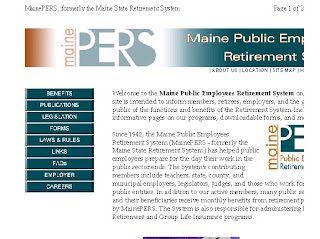 As you can see, the image & text has been sliced on the right hand side, omitting the ends of sentences, essentially making worthless the entire print job.
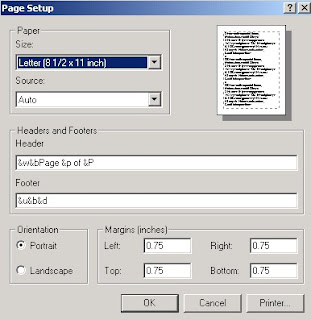 And here is the Page Setup menu in Landscape mode:
 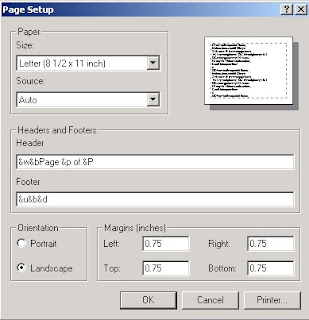 Landscape mode turns the page on its side. This often nullifies printouts that have chopped off the end of horizontal lines.
 Recapping & Summing Up
 2) The database providing access to Consumer Reports is Academic Search Premier. It is the first database on the alphabetical list of databases.
 3) To limit your search to Consumer Reports articles, you can either electronically add Consumer Reports by
 c) Clicking the box next to Consumer Reports & clicking on Add.
 d) Now, that Consumer Reports is in the "Find" box, click on Search.
 e) Or, you can manually type in (JN "Consumer Reports") in one of the three search boxes.
 4) Once you have limited your search to Consumer Reports, now you can add a search term, such as refrigerator into your search. Click Search or just hit "enter."
 5) On your results page, you may see either an Article Linker tag, PDF Full Text tag, or an HTML Text tag in the results of your search. The Article Linker results are those that are currently embargoed & are not available yet in full text on-line (but Bangor Public Library does own in print). The PDF Full Text results will provide easy links to magazine quality reproductions of Consumer Reports articles.
 6) If you need further assistance with this search or for other tips on how to use this or other Marvel! databases, contact a reference librarian (
 2)The database to access is Literature Resource Center. You may get to this database by
 B. Selecting Literature Resource Center from the Literature list:
  C. Scrolling down to Literature Resource Center on the A-Z listing of databases:
 3) Do an Advanced search.
 4) Put an author's name in the first search box, using Author as the search term. Put the title of the story or novel in the second search box, using Title as the search term. Click the green Search button.
  5) For journal articles and reviews, click the Literary Criticism, Articles and Work Overviews tab.
  6) To view the journal articles and reviews, click Literary Criticism.
  7) From this results list, you can easily read or print any articles that will be helpful for your research.
