Cures for the Common Bad Printout
Because I see folks getting frustrated with bad photocopies of Internet pages, email messages, and photos on a daily basis, I decided to put together a brief illustrated tutorial on how to avoid certain types of printing errors.
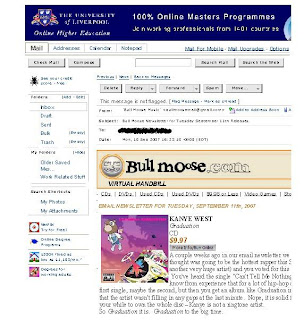 Though the print is small in this example, you can see that on the left hand side are all the graphics from your Yahoo! screen & on the right, the text of the message has been cut off. The reason for this is that, while I had wanted to print the email message, what I have actually done is printed the screen image. This is most likely because I used the drop down File - Print option or printer icon
  or word "print" on the window toolbar to print.
Fortunately, most e-mail providers offer a simple solution to this problem. Yahoo! mail remedies this through a feature called printable view. Printable view is located on the far right within each e-mail message. Clicking on printable view in Yahoo! will reopen the message in another window. Reopening the message in a new window will eliminate the Yahoo! screen graphics on the left side. Example:  A comparison of these type examples will show that about half of the message was printed using the File -- Print or icon print image on the windows page.
Article Printouts
Another potential source of bad printouts is articles from databases. Most of these databases too provide means for opening articles in separate windows, allowing a person to avoid printing the screen image rather than the article content.
Here is an example of a poor printout of an on-line Sports Illustrated article I found using Marvel! & searching under Academic Search Premier: What this printout is providing is the screen image for the record I found, not the content of the article I'm hoping to print. Again, drop down File - Print option or printer icon
  or word "print" on the window toolbar to print.
Most databases have solved this problem in a much similar way that e-mail providers have. On the screen of the record of which I'm looking, there is a printer image & printer (i.e.  )written next to it. Clicking on this print will lead you to a print of the same record that would look like this:
 This print has eliminated the peripherial & irrelevant images from the previous print, focusing instead on the written content I wanted printed.
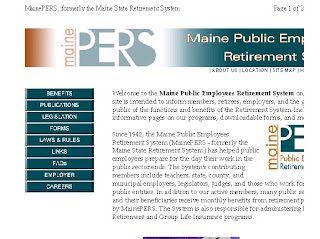 As you can see, the image & text has been sliced on the right hand side, omitting the ends of sentences, essentially making worthless the entire print job.
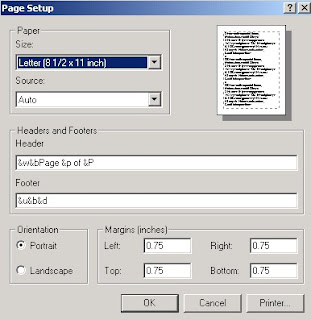
To remedy this type of printing error, you will need to go into the drop-down file menu in the upper left hand corner in the screen. On this menu, select Page Setup. The default setting for most printers is to print in Portrait mode, which means the print will be on an 8 1/2 by 11 inch page with the 8 1/2 inches being the page horizon & the 11 inches being the vertical.
 And here is the Page Setup menu in Landscape mode:
 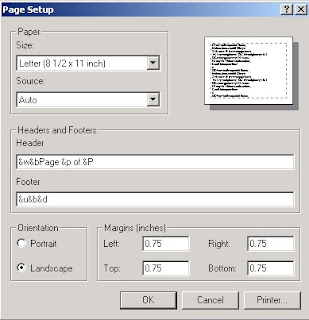 Landscape mode turns the page on its side. This often nullifies printouts that have chopped off the end of horizontal lines.
 Recapping & Summing Up
Opting to print an e-mail message or database or website article using the Print option within the message or article is always a more reliable means of getting a good printout.
The drop-down File - Print menu & the printer icon on the tool bar essentially only print the image on the screen, often using margins that will not match the desired area you wish to print.
Often, changing the default printer setting from Portrait to Landscape may be necessary to ensure all relevant data gets printed.
One last tip: Double-checking your print job by using Print Preview is always a good idea. Print Preview is located on the drop-down File menu in the top left corner of the screen.
If you have any questions about this information, please feel welcome to e-mail me at playne@bpl.lib.me.us or you may simply respond to this post.


 2) The database providing access to Consumer Reports is Academic Search Premier. It is the first database on the alphabetical list of databases.
 3) To limit your search to Consumer Reports articles, you can either electronically add Consumer Reports by
 c) Clicking the box next to Consumer Reports & clicking on Add.
 d) Now, that Consumer Reports is in the "Find" box, click on Search.
 e) Or, you can manually type in (JN "Consumer Reports") in one of the three search boxes.
 4) Once you have limited your search to Consumer Reports, now you can add a search term, such as refrigerator into your search. Click Search or just hit "enter."
 5) On your results page, you may see either an Article Linker tag, PDF Full Text tag, or an HTML Text tag in the results of your search. The Article Linker results are those that are currently embargoed & are not available yet in full text on-line (but Bangor Public Library does own in print). The PDF Full Text results will provide easy links to magazine quality reproductions of Consumer Reports articles.
 6) If you need further assistance with this search or for other tips on how to use this or other Marvel! databases, contact a reference librarian (
 2)The database to access is Literature Resource Center. You may get to this database by
 B. Selecting Literature Resource Center from the Literature list:
  C. Scrolling down to Literature Resource Center on the A-Z listing of databases:
 3) Do an Advanced search.
 4) Put an author's name in the first search box, using Author as the search term. Put the title of the story or novel in the second search box, using Title as the search term. Click the green Search button.
  5) For journal articles and reviews, click the Literary Criticism, Articles and Work Overviews tab.
  6) To view the journal articles and reviews, click Literary Criticism.
  7) From this results list, you can easily read or print any articles that will be helpful for your research.


